

Turn on two-factor authentication
1
Open Security
Click the gear at the top right, open Settings, then Security. Next to Two-factor authentication, click Set up.
2
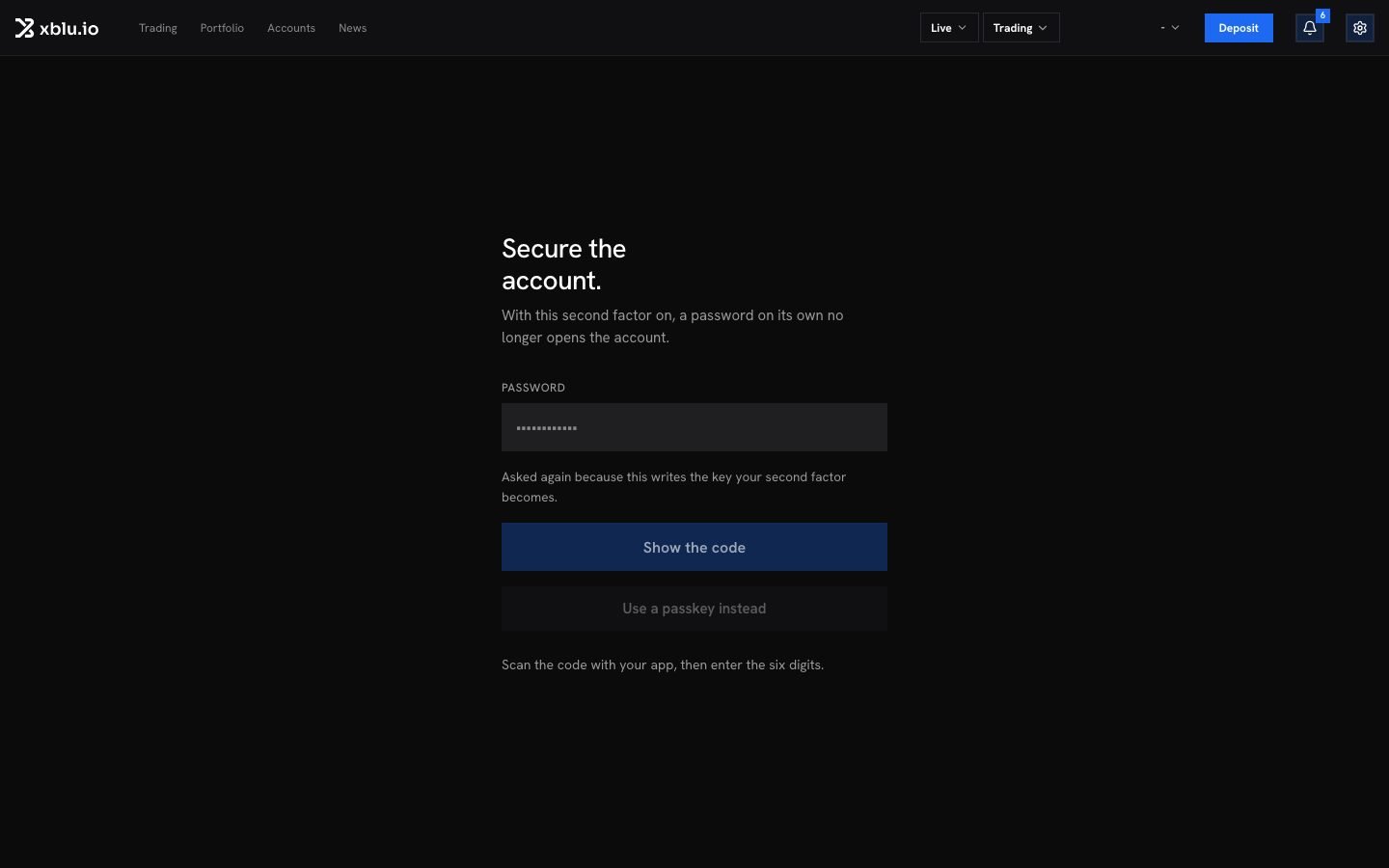
Scan the code
Click Show the code, then scan the QR code with your authenticator app. If you cannot scan, enter the key shown under OR ENTER THE KEY.
3
Enter the six digits
Type the SIX-DIGIT CODE your app shows and click Turn on.
4
Create your recovery codes
The app offers to create your recovery codes. Do it now. See below.
Recovery codes
Ten single-use codes that open the account if you lose your phone. They are shown only once: Download or Print them, and keep them off the device you trade on. Tick I have put these codes somewhere safe to continue. A recovery code works once. Security shows how many you have left. Regenerate replaces the whole set.Passkeys
A passkey signs you in with your device’s own lock: your face, your fingerprint or its PIN. It only works on the Xblu site, so a copied page gets nothing from it. In Security, next to Passkeys, click Add, name it (for example “My phone”) and follow your device. Then Sign in with a passkey on the sign-in page. A passkey also counts as your second factor. Keep at least one other: you cannot remove your only second factor.Adding a passkey makes withdrawals wait 24 hours, as any change to how you sign in does.