

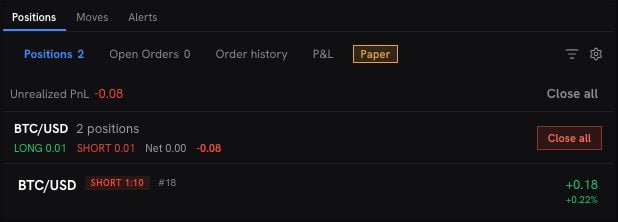
Change the stop loss or the take profit
Click Edit SL/TP on the position, set the new levels and click Save. A position without one shows Add a stop loss or Add a take profit. To remove one, click Remove stop loss or Remove take profit. You can also drag the TP and SL lines on the chart. You can close the position in steps: Add a target level or Add a stop level adds a row, with the share of the position it closes.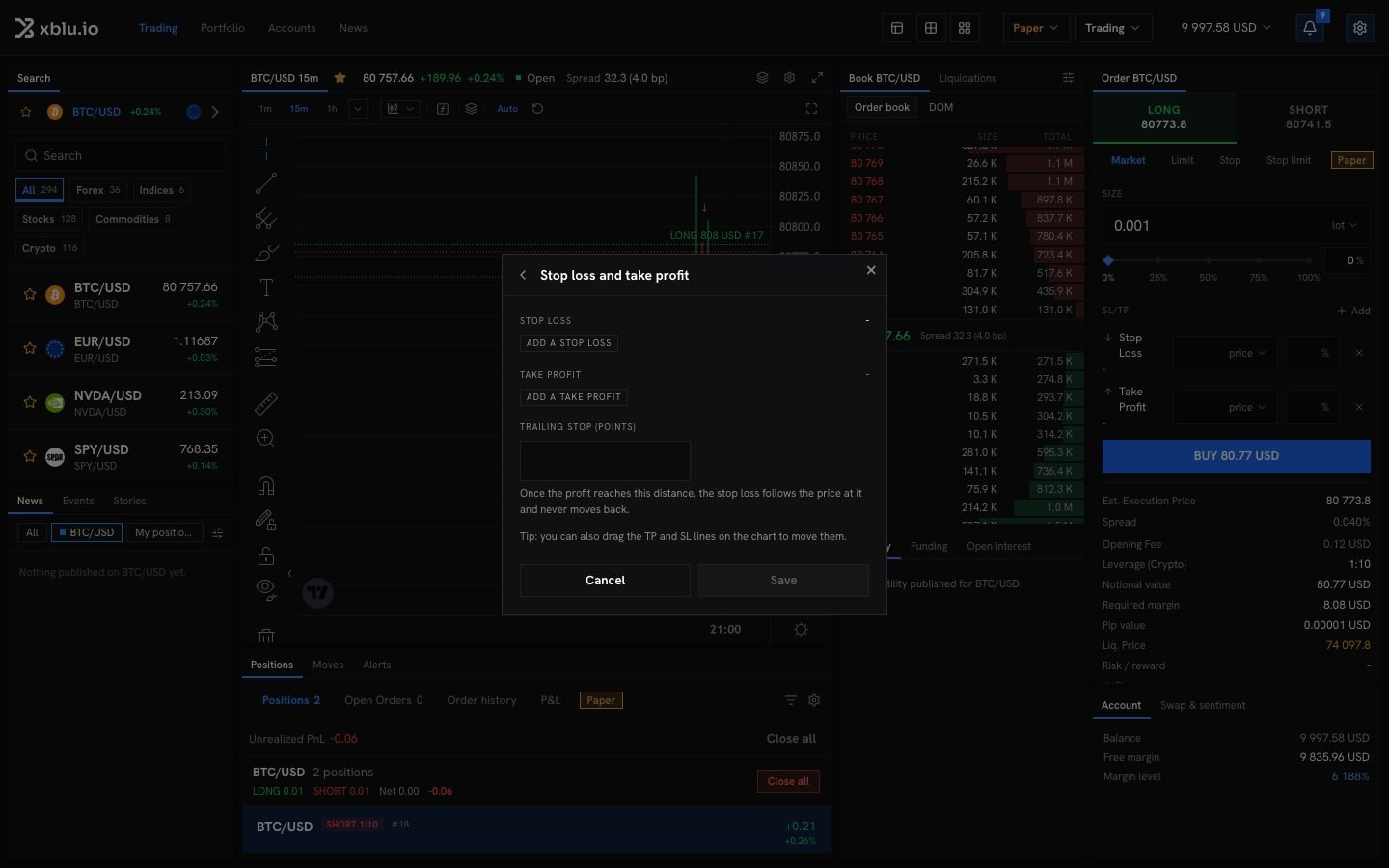
Close a position
Click close on the row, then Close position. It closes at the market. To close part of it, choose Partial. Set the Volume to close: the dialog shows what it closes, what it keeps, and an estimate of the realised result. At least the instrument’s minimum size has to stay open; otherwise close the whole position.Close several positions
- Close all in the positions panel closes every position at the market.
- When you hold several positions on one instrument, they are grouped. Close all on the group closes every position on that instrument.
Cancel a pending order
In Open Orders, click cancel on the order, then Cancel order. Once cancelled, it will not fill.History
- Order history lists orders that were filled, cancelled or expired.
- P&L sums up your closed positions: Realized P&L, Win rate, Avg. win / loss, Avg. holding time and Best / worst pair. Filter it by how the position closed: manual, TP, SL, liquidation or stop-out.