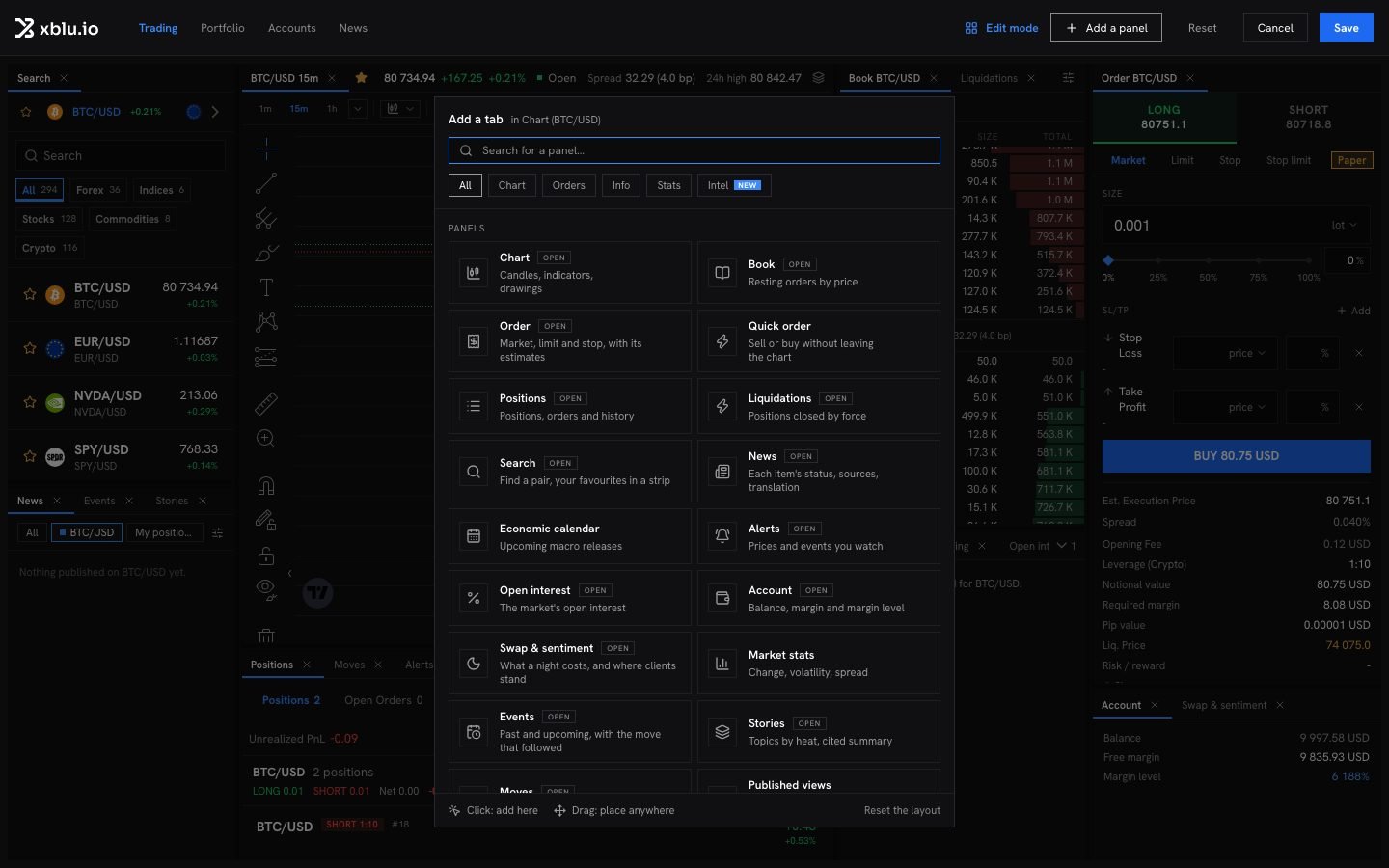
The Add a tab catalogue
The terminal is made of panels you arrange as you like. Your layout is saved to your account and follows you from one browser to another.

Add a panel

Open Panels in the top bar, or click Add a panel in edit mode, and pick one in Add a tab. Click to add it in place, or drag it anywhere. Quick order lets you buy or sell without leaving the chart: it opens the full ticket on that side, where the order is confirmed.

Edit the layout

1

Enter edit mode

Click Edit layout in the top bar.
2

Arrange the panels

Drag a tab onto other tabs to group them, onto an edge to split, or into empty space for a floating window. Pull the borders to resize. Esc cancels a drag.
3

Save

Click Save. Reset goes back to the default layout.

Several charts

The Charts menu lays out up to 12 charts. F enlarges the active chart, Esc gives the layout back. The ticket trades the active chart’s instrument. Charts can be linked by colour. Charts in the same link group follow each other’s symbol, interval, crosshair, time or drawings.

Favourites

Click the star next to an instrument’s name to add it to your favourites bar, above the chart. Hide the favourites bar in the terminal settings hides it, and Hide markets that are closed keeps only the instruments quoting now.